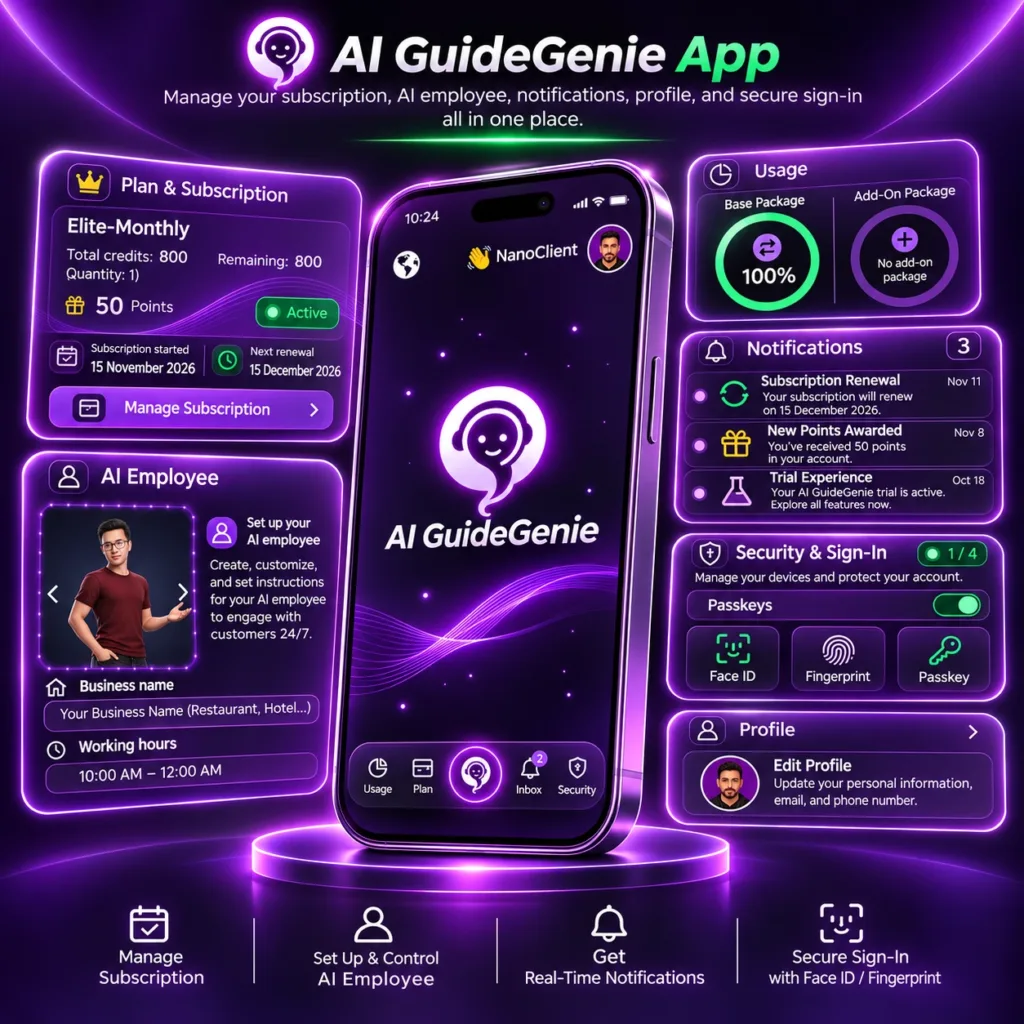



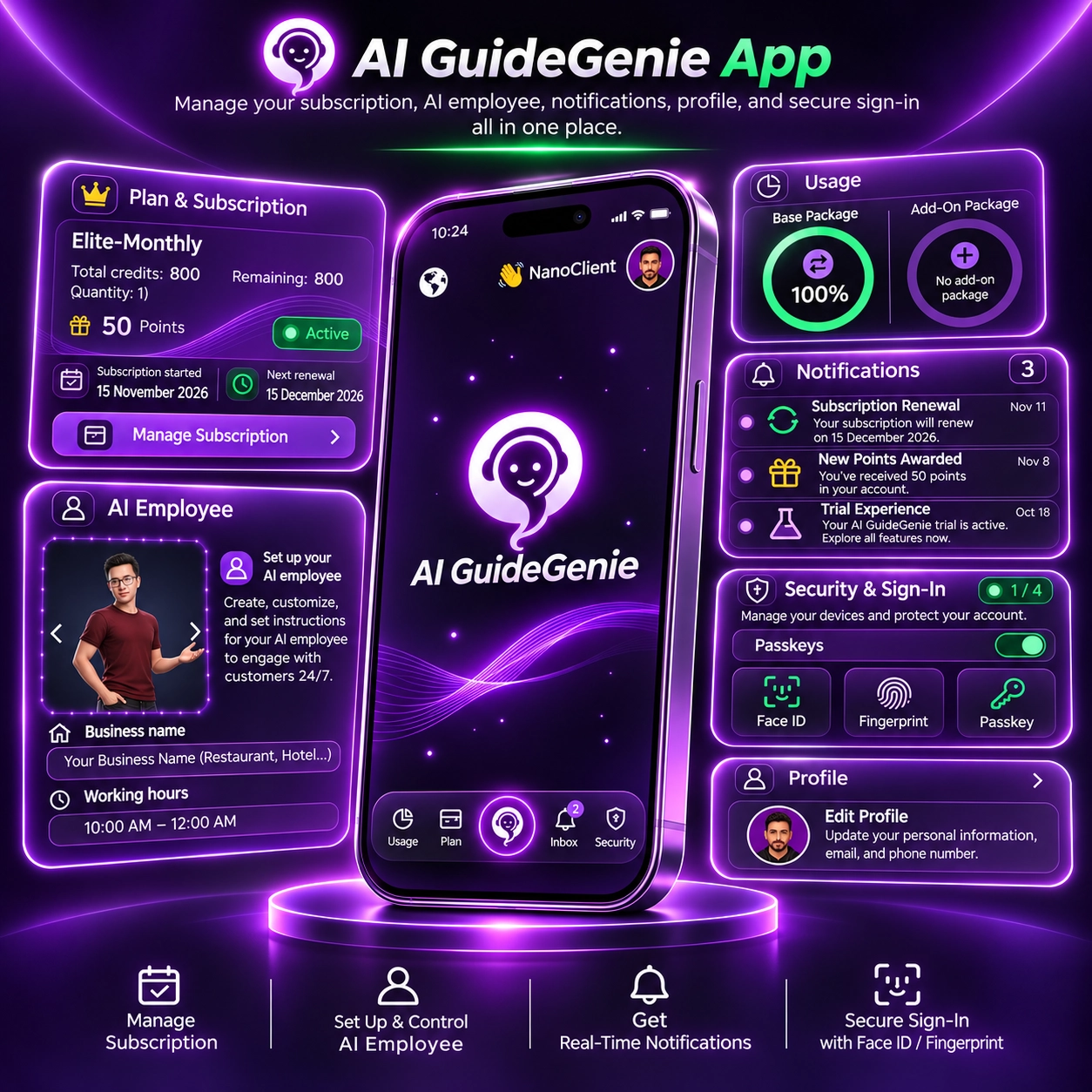
Managing your AI-powered virtual employee has never been easier! With the AI GuideGenie App, developed by Nanodesigntec, you can manage your subscription, customize your virtual employee, monitor usage, and control your account settings—all from one convenient place.
The app provides a comprehensive dashboard with essential tools to manage your AI services, whether your virtual employee is assisting customers in a restaurant, hotel, retail store, or any other business.
Best of all, you can access your account directly from your smartphone and enjoy faster, more secure sign-ins using fingerprint authentication or facial recognition, depending on your device’s capabilities. 🔐
🚀 1. Getting Started: Sign In to Your Account
To start using AI GuideGenie:
- Open the AI GuideGenie App on your smartphone.
- Sign in using your account associated with your email address.
- Once successfully signed in, you’ll have access to your personal dashboard.
- You can then enable Passkeys in the Security section to simplify future sign-ins.
💡 Tip: After setting up Passkeys, you can authenticate using your fingerprint, facial recognition, or another supported device verification method without entering your password every time.
📊 2. Monitor Your Package Usage (Usage)
The Usage section allows you to easily track the consumption of resources included in your subscription.
The dashboard is divided into two main sections:
🟢 Base Package
Displays a circular progress indicator showing the usage status of your main subscription package.
This visual overview helps you monitor your available resources and understand your current package usage at a glance.
🟣 Add-On Package
Here, you can view any additional packages associated with your account and check whether an add-on package is currently active.
✅ This section helps you monitor your subscription resources and plan your usage according to your business needs.
💳 3. Manage Your Subscription (Plan)
The Plan section gives you a complete overview of your current subscription in one place.
You can view the following information:
- 👑 Current Plan: Your active subscription plan and billing period.
- 🎯 Total Credits: The total usage credits included in your plan.
- 📈 Remaining Credits: Your remaining available usage credits.
- 🎁 Points: Reward points associated with your account.
- ✅ Subscription Status: Your current subscription status, such as Active.
- 📅 Subscription Started: The date your subscription period began.
- 🔄 Expires On: The expiration date of your current subscription period.
Manage Subscription
By selecting Manage Subscription, you can access your subscription management options and review your plan details.
💡 Tip: We recommend regularly checking your remaining credits and upcoming renewal date to help ensure your virtual employee continues operating without interruption.
🤖 4. Select Your Virtual Employee and Customize Instructions
This is one of the most important sections of the AI GuideGenie App.
The Employee section allows you to personalize your AI-powered virtual employee to match your business identity and customer service requirements.
👤 Choose Your Virtual Employee
From the Employee setup interface, you can browse the available virtual characters and switch between them to select the one that best represents your brand.
Each character is designed to deliver an interactive experience that combines a three-dimensional appearance with artificial intelligence.
🏢 Configure Your Business Information
You can enter essential business information to help your virtual employee understand your organization and provide relevant responses to customers.
Business Name
Enter the name of the restaurant, hotel, retail store, or business your virtual employee will represent.
Working Hours
Specify your business operating hours so your virtual employee can provide accurate information when customers ask about opening and closing times.
📝 Customize Your Virtual Employee’s Instructions
AI GuideGenie allows you to configure instructions that define how your virtual employee interacts with customers.
For example, you can customize:
- 👋 Customer Greetings: How your virtual employee welcomes visitors.
- 💬 Customer Support: How it responds to questions and inquiries.
- 🛍️ Products and Services: Information about the products or services your business provides.
- 📋 Business Policies: Instructions regarding your organization’s policies and procedures.
- 🌍 Communication Style: The tone and communication approach that best suits your target audience.
Example: Restaurant Virtual Employee
If you operate a restaurant, you can instruct your virtual employee to:
- Welcome customers in a friendly and professional manner.
- Answer questions about your menu and available services.
- Provide information about your restaurant’s working hours.
- Explain relevant restaurant policies.
- Assist customers with general inquiries.
✅ The clearer and more detailed your instructions are, the more consistent and professional your virtual employee’s interactions can become.
🔔 5. Manage Notifications (Inbox)
The Inbox section keeps you informed about important updates related to your account, subscription, and AI services.
You may receive notifications such as:
- 🔄 Subscription Renewal: Reminders about upcoming subscription renewals.
- 🎁 Points Awarded: Notifications when new reward points are added to your account.
- 📊 Usage Alerts: Updates related to your available usage credits.
- ✅ Account Updates: Important changes or updates related to your account and connected services.
- 🎉 Welcome Messages: Welcome notifications and general announcements.
📲 Enable Device Notifications
To receive notifications directly on your smartphone:
- Open the Inbox section.
- Locate the Device Notifications option.
- Enable the notification toggle.
- If prompted, allow the app to send notifications through your device settings.
Once enabled, supported push notifications can appear directly on your device, even when you’re not actively using the app, depending on your device permissions and notification settings.
💡 Tip: Keep notifications enabled to stay informed about subscription renewals, usage updates, and important account activity.
🔐 6. Enable Fingerprint or Face ID Authentication (Security)
AI GuideGenie includes a dedicated Security section to help protect your account and manage connected devices.
One of its most convenient features is support for Passkeys, which allows you to use modern device authentication methods for faster and more secure sign-ins.
👆 How to Enable Passkeys
After signing in for the first time using your email-associated account:
- Open the Security section from the bottom navigation bar.
- Locate the Passkeys option.
- Enable Passkeys.
- Follow the setup instructions displayed by your device or browser.
- Complete the verification process using your fingerprint, facial recognition, or device screen lock, depending on your device’s capabilities.
✨ Once configured, Passkeys can help you sign in more quickly and conveniently without manually entering your password every time.
Important: Fingerprint authentication and Face ID availability depend on your device, operating system, browser, and supported security settings.
📱 Manage Active Devices
The Security section also provides information about the devices connected to your account.
You can review details such as:
- Device type and browser.
- IP address associated with the session.
- Login date and time.
- Last activity.
- Number of active devices compared with your available device limit.
This information helps you monitor account activity and identify the devices using your subscription.
✅ Regularly reviewing your active devices is a useful way to maintain better control over your account’s security.
👤 7. Edit Your Personal Profile (Profile)
Keeping your account information up to date is simple with AI GuideGenie.
To access your profile, tap your profile picture at the top of the app interface.
The Profile section allows you to view and update your personal information.
Available fields include:
- 🧑 First Name: Your first name.
- 🪪 Last Name: Your last name.
- 📧 Email: The email address associated with your account.
- 📞 Mobile Number: Your mobile phone number.
- 📸 Profile Picture: Your account’s profile image.
How to Update Your Profile
- Tap your profile picture.
- Open the profile editing interface.
- Update the available fields.
- Review your information.
- Tap Save Changes to save your updates.
Maintaining accurate profile information helps keep your account organized and supports communication related to your subscription and services.
🌐 8. Access AI GuideGenie Across Different Devices
AI GuideGenie is designed to provide a flexible experience across supported devices, allowing you to manage your virtual employee whether you’re at your workplace, traveling, or working remotely.
The application uses Progressive Web App (PWA) technology, making it possible to access and install the app on supported smartphones and computers.
📲 Benefits of PWA Technology
- Easy Access: Open your AI GuideGenie account from a supported device.
- App-Like Experience: Enjoy a convenient interface designed for mobile and desktop use.
- Convenient Installation: Install the web app without relying on traditional app stores.
- Centralized Management: Access your subscription, virtual employee settings, notifications, and security tools from one place.
💡 Tip: Installing the PWA on your device provides a convenient way to access your AI GuideGenie dashboard whenever you need it.
💜 Everything You Need to Manage Your Virtual Employee in One Place
With AI GuideGenie, you no longer need to switch between multiple tools just to monitor your subscription or manage your virtual employee.
The application brings essential account and employee management features together in one intuitive dashboard.
Here’s what you can do:
✅ Monitor Package Usage: Track your main package and available add-ons.
✅ Manage Your Subscription: Review your current plan, remaining credits, reward points, and renewal dates.
✅ Customize Your AI Employee: Choose a virtual character, configure business information, and personalize its instructions.
✅ Stay Informed: Receive important notifications about subscriptions, usage, rewards, and account updates.
✅ Update Your Profile: Manage your personal information and profile picture.
✅ Secure Your Account: Review active devices and manage your account security settings.
✅ Enable Biometric Sign-In: Use fingerprint authentication or facial recognition through Passkeys on supported devices.
✅ Access Your Dashboard Anywhere: Manage your virtual employee from supported smartphones and computers.
🚀 AI GuideGenie – Your Intelligent Virtual Employee, Always Within Reach.
Whether you’re managing a restaurant, hotel, retail business, or another customer-facing operation, AI GuideGenie gives you the tools you need to configure, monitor, and manage your AI-powered virtual employee.
One app. One dashboard. Complete control over your virtual employee experience.
📲 Ready to Get Started with AI GuideGenie?
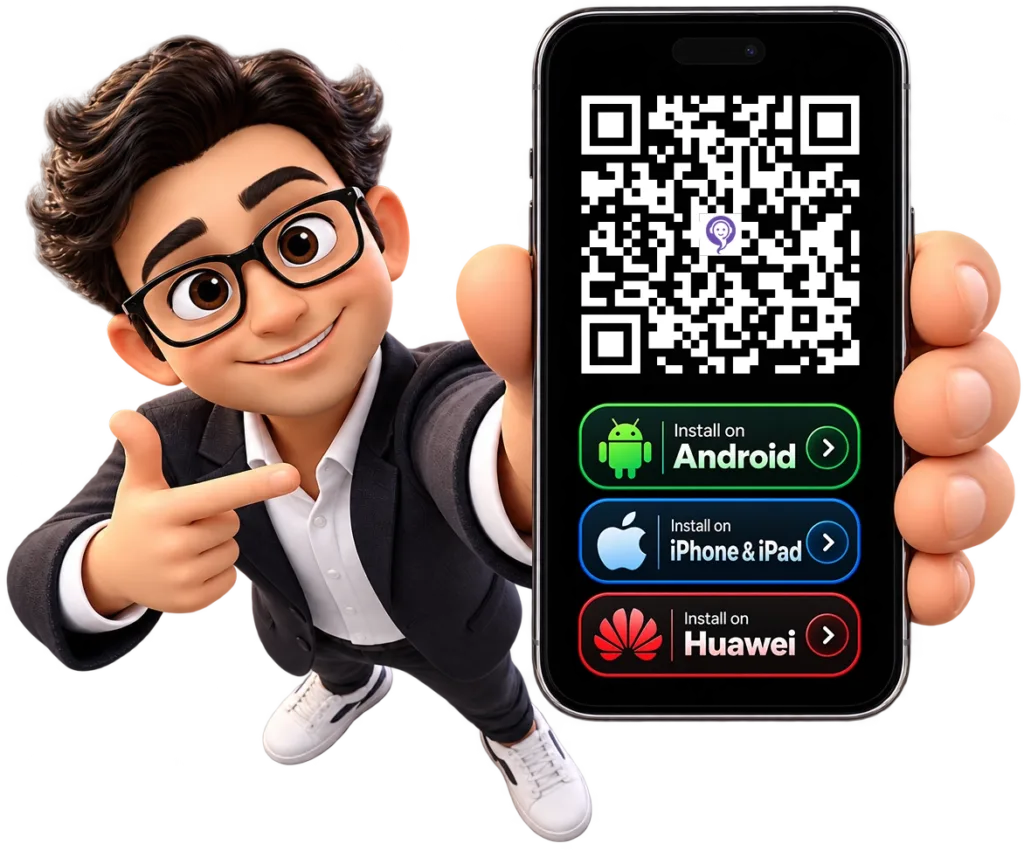
Scan the QR code or use the installation options below to access AI GuideGenie on your device.